
Client Dashboard

The Central Hub For Managing Your Services With Us 

Client Rescue Support

You must be in communication with a CATS Technician via phone or email before attempting to connect, as your connection call may not be answered otherwise. Trying to connect your phone? View instructions

1.Contact CATS via the support email or by phone. The first step in our process is to determine if we can resolve the issue by phone, or require an onsite visit, before we begin attempting to connect online

2. Once you are on the phone with a member of our support team, you will be directed back to this page to initiate the screen-sharing session. Simply fill in the form and click the Client Rescue Support LAUNCH Button

3. With your permission, your support representative can view your screen and share control of your mouse and keyboard.

4. You are in full control of your computer at all times. You always have overriding control of your mouse and keyboard, and you can end the screen-sharing session at any time.

Know a Business That Could Use Better IT Support?

At CATS Technology, our success is built on the relationships we’ve developed with our clients and the trust they place in us. We believe the best connections come from people who know us best!

If you know a business that could benefit from reliable IT support, we’d love for you to send them our way. As a thank-you for helping us grow, you’ll receive a referral reward when the business you refer becomes a CATS client.

Simply fill out the form below to get started!
1. Refer

Introduce a business that could benefit from CATS.

2. Connect

Our team reaches out and explores how we can help.

3. Get Rewarded

Earn your reward when the referral qualifies.

Client Resource Center

Powered By EmbedPress

Powered By EmbedPress

  1. Download the App:
    Install ConnectWise Control from the App Store.
  2. Open the App:
    In the URL field, enter:

    cmd-catstechnologysolutionsgroup.screenconnect.com

    Then tap Go.

  3. Enter Your Code:
    Type in the session code provided by your technician.
  4. Start the Screen Share:
    When the session page opens, select Initiate Screen Share.
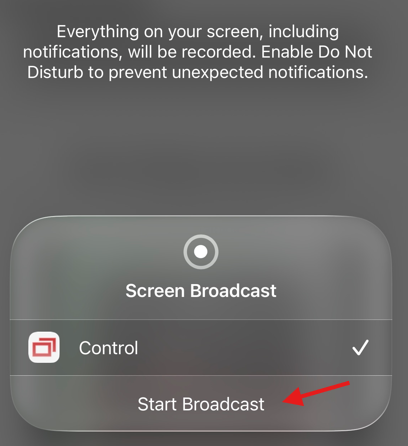
  5. Begin the Broadcast:
    You’ll be prompted to tap Start Broadcast to share your screen.
image 1759775272807

Powered By EmbedPress

Our newsletter is packed with exclusive IT tips, cybersecurity alerts, company updates, and interactive trivia where you can win prizes. Simply enter your email below. 

Live Chat With One of Our Expert Technicians

Our help desk is here to support our clients. To start a chat, enter your information below and press enter on your keyboard. To continue a chat, refer to the Login button below. One of our tech’s will join you as soon as possible. 

If you’re experiencing issues logging in to access a live chat, please consult our Live Chat Guide for assistance.